|
|
Related Topics
To provide you more detailed instruction, you can also click ASUS Youtube video link below to know more about Troubleshooting for failed Internet access through router
https://youtu.be/jzsJX3b16BE
Before starting to check the settings, please confirm your internet connection method. If you are unsure about your network connection, please consult your Internet Service Provider (ISP).
Flow Chart
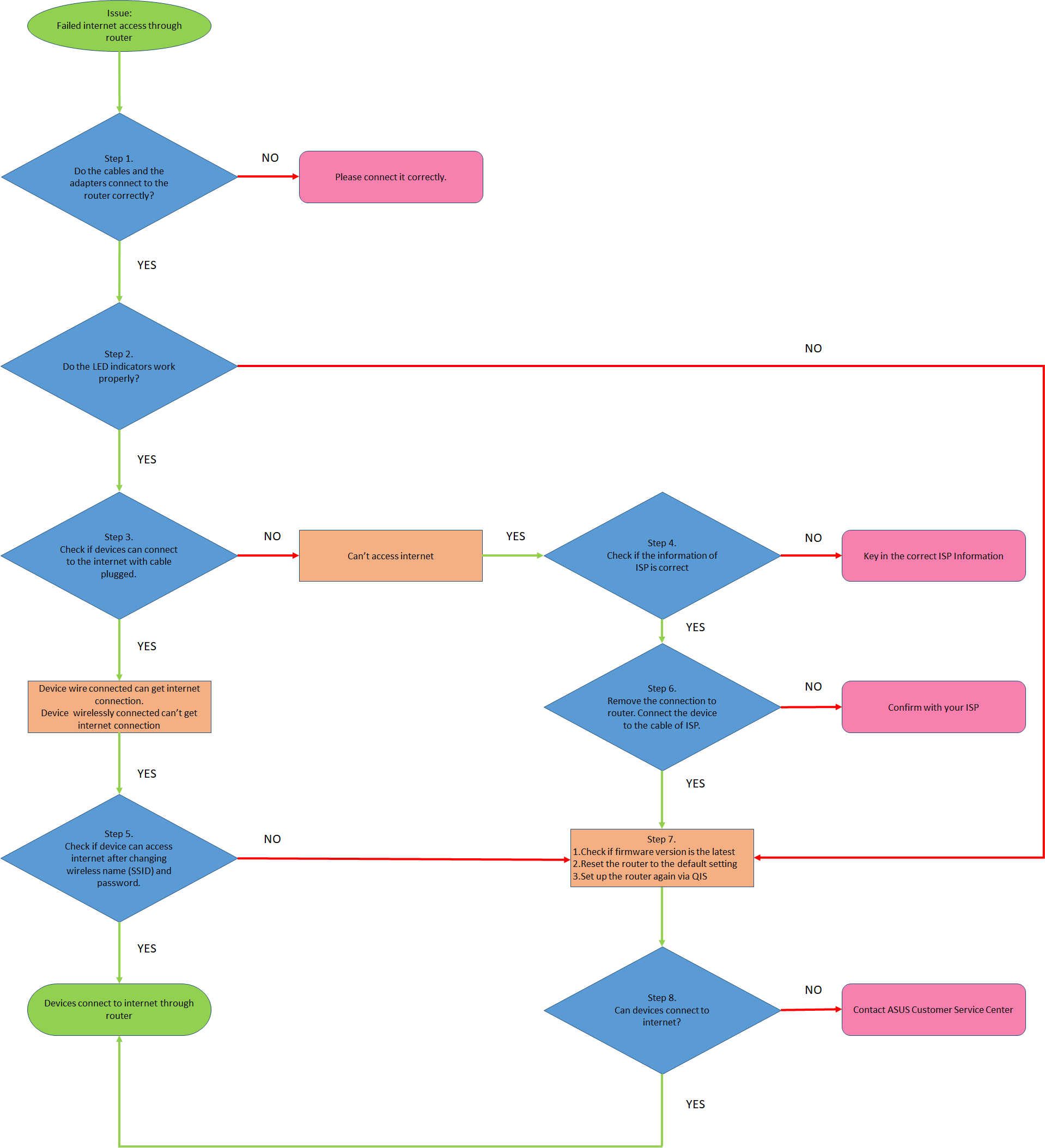
If you are using a DSL modem router, please refer to the following FAQ first
Step 1. Check that the wireless router is connected correctly.
1. Ensure all devices (e.g. modem, router, and computer) are correctly connected.
Reminder: You can also connect your device (e.g. laptop or smart phone) to the ASUS router using WiFi.
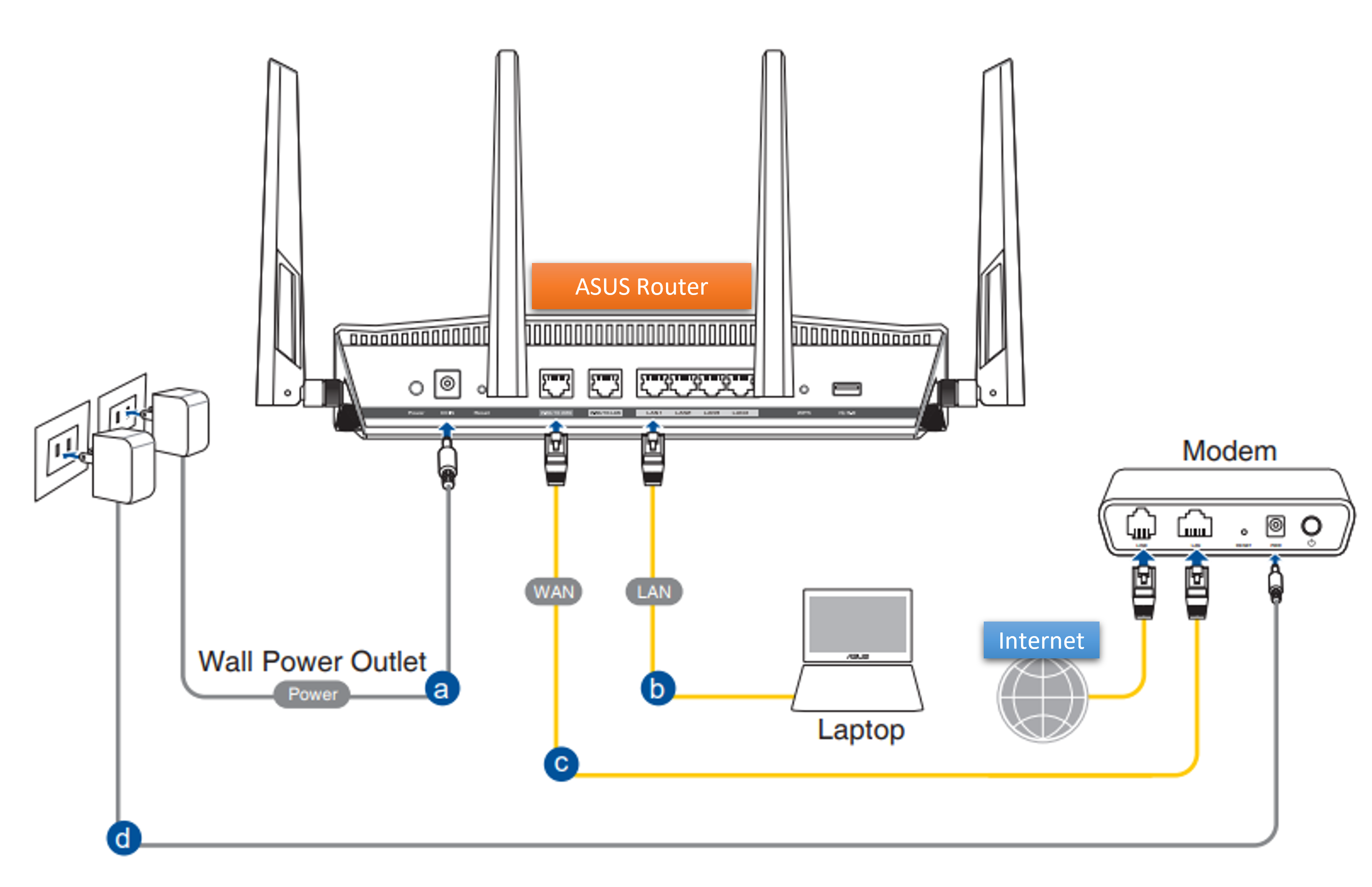
a. Plug the AC adapter of your router into the DC-IN port and connect it to the power supply.
b. Use a network(RJ-45) cable to connect to the router's LAN port to your computer.
c. Use a network(RJ-45) cable to connect to the router's WAN port to your modem's WAN port.
d. Plug the AC adapter of your modem into the DC-IN port and connect it to the power supply.
2. Please confirm that your network(RJ-45) cable is worked properly. Ex: The pins are all worked and there’s no damage part.
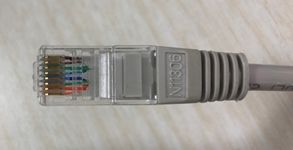
The following pictures take RT-AC68U as an example.
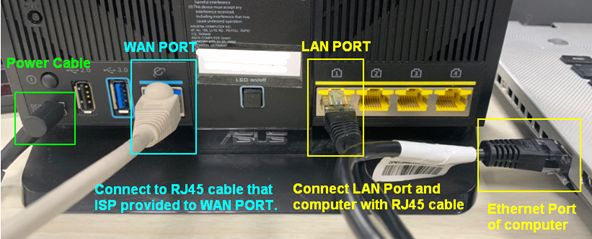
Notice: After connect to power supply, remember to press the Power button to turn on the router.
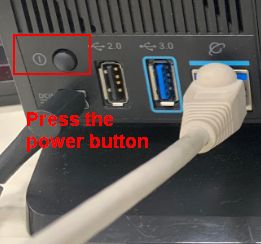
Step 2. After turning on the router, check if the LED indicators work properly.
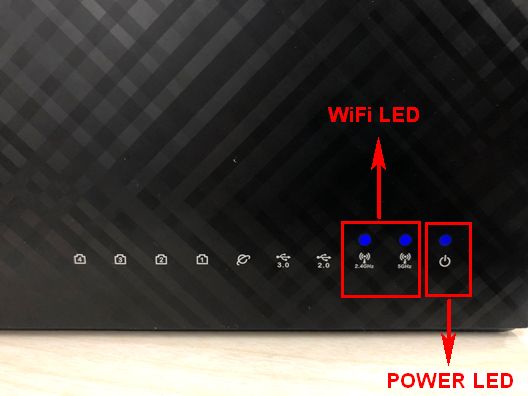
1. Make sure the power LED indicator on the front of the router is on, and the WiFi 2.4 G / 5 G LED indicators flashes, indicating that the router is turned on.
2. If you have connected the WAN port and the LAN port, the corresponding LED indicators will also light up.
(Please check the user manual to confirm the LED light instructions for the wireless router)
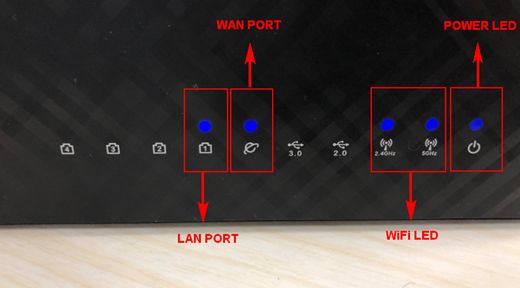
3. If your cables are all connected correctly, but found out that the power LED indicator and the WiFi LED indicator didn’t on. We suggest you reset your router first and then check again if the LED indicators are worked properly. About how to reset your router into default setting, please refer to Step 7.
Step 3. Test whether the device can access the Internet through a wired connection to the router.
Please try to connect your device (e.g. PC, laptop) to your wireless router using a network cable.
1. If couldn’t, please refer to Step 4 to do the troubleshooting.
2. If connect to the router via cable could access internet, but when devices (e.g. PC, laptop) connect to the router wirelessly couldn’t access internet, please refer to Step 5.
3. If the router can access the Internet normally, but the device (e.g. PC, laptop) cannot access the Internet when connected to the router, please refer to the FAQ below
Step 4. Check if the related information of your Internet Service Provider (ISP) is correct.
1. Please go to the setting page of the router (WEB GUI) and make sure the WAN settings are correct.
Note: The related information needs to be confirmed with your Internet Service Provider (ISP)
(1). Automatic IP
Note: One of the possible causes for the modem to ignore DHCP (WAN IP) request is too many of them were sent in short period of time. May change DHCP query frequency value from Aggressive mode to Normal mode, restart the router (and modem) to try again.
Web GUI > WAN > Internet Connection > Special Requirement from ISP.
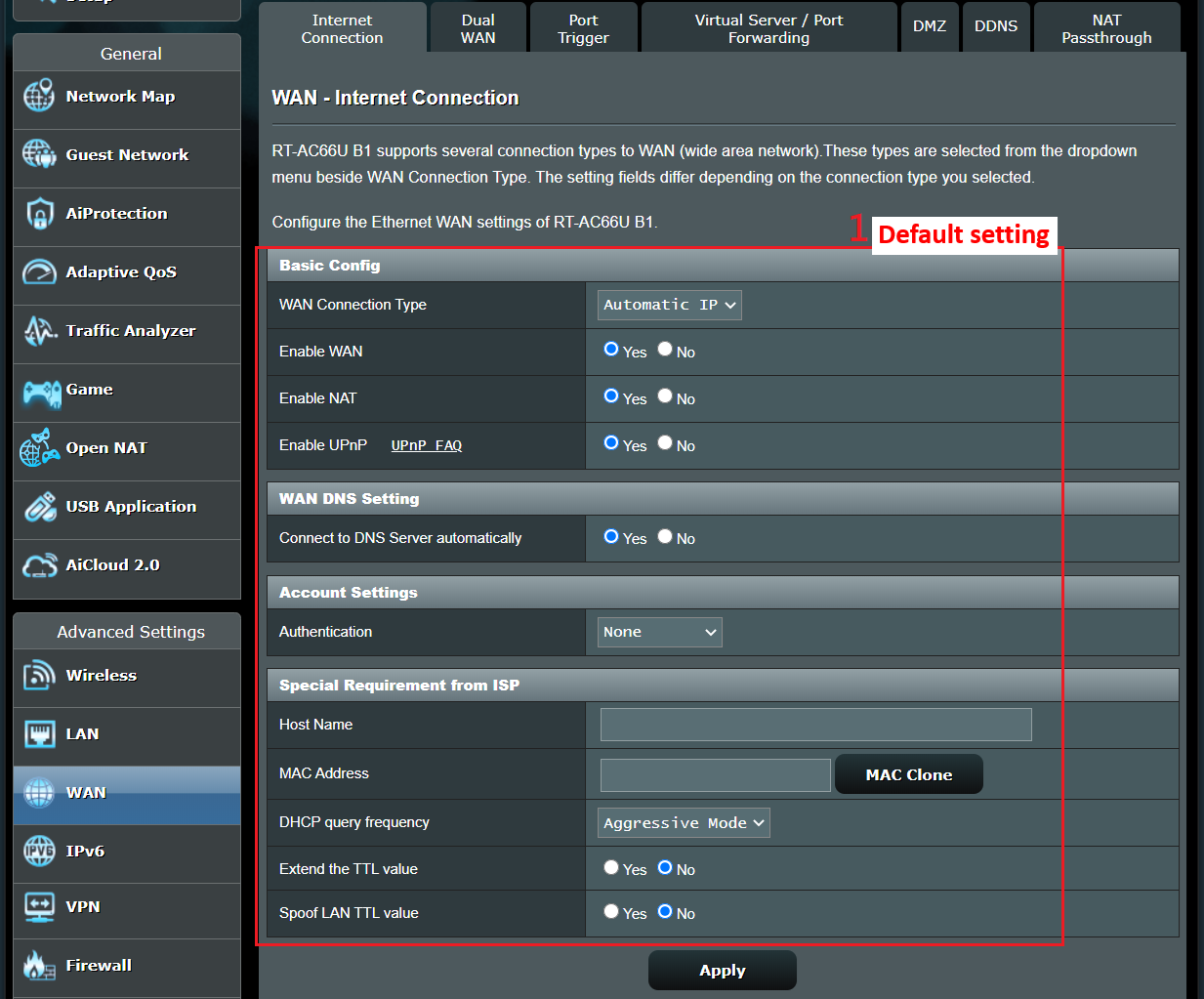

Notice: The related information needs to be confirmed with your Internet Service Provider (ISP).
(2). PPPoE
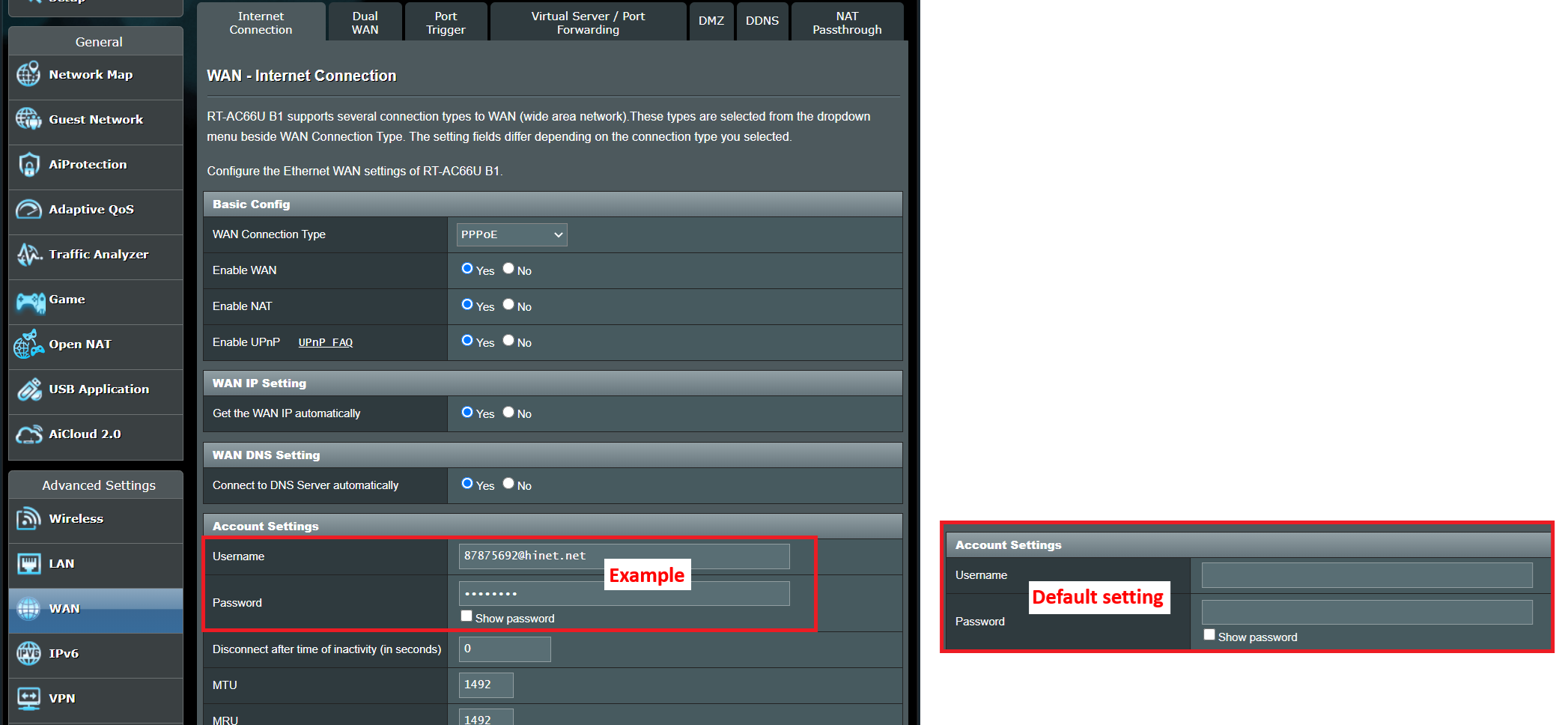
For example: (Varies from every region)
Region: Taiwan
WAN connection type: PPPoE
User Name : 87875692@hinet.net
Password: xxxxxxx
If a disconnect occurs after a period of time using Internet, it is recommended that you try to PPPoe > Internet detection disable (the default is PPP Echo).
And then click Apply to save.
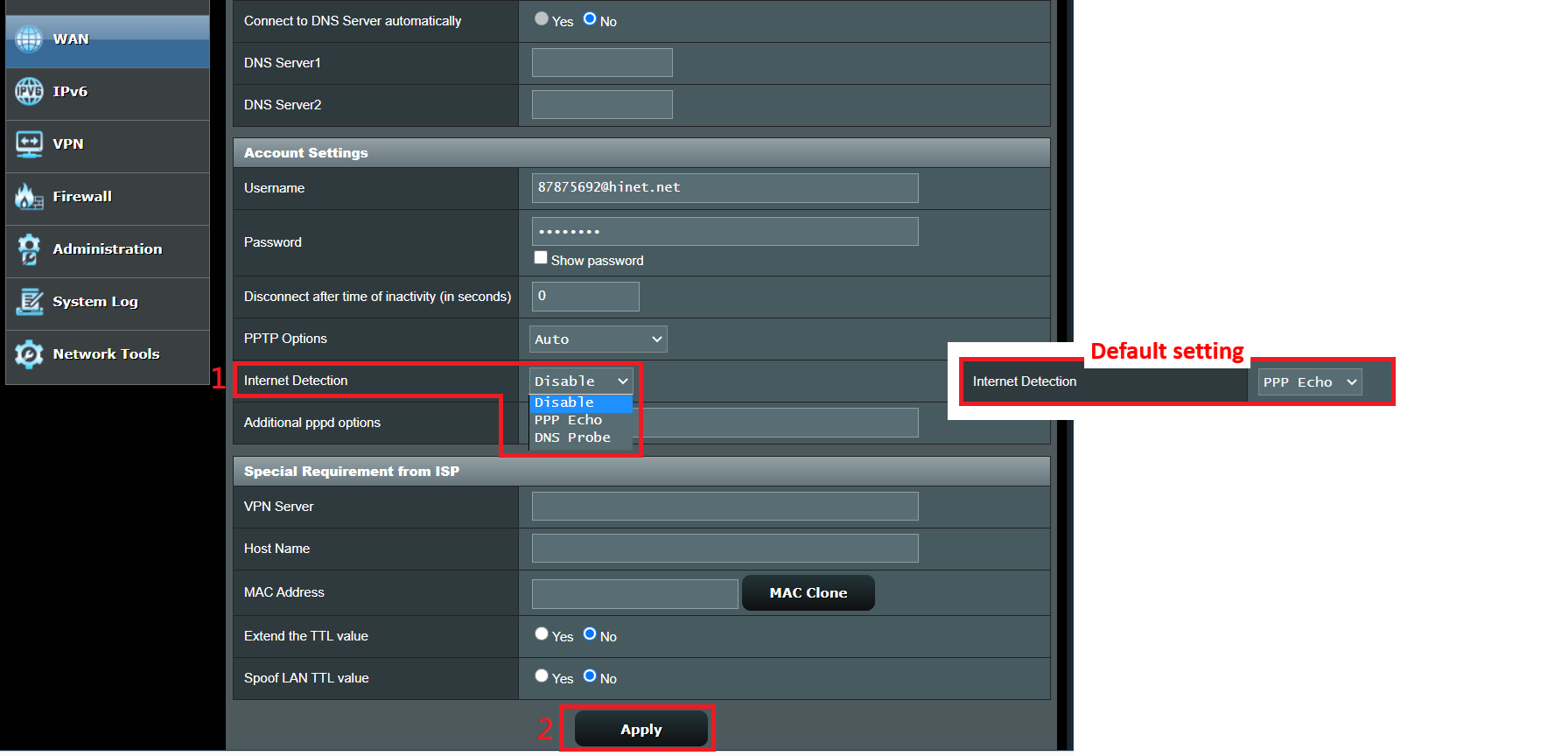
Notice: the related information needs to be confirmed with your Internet Service Provider (ISP).
(3). Static IP
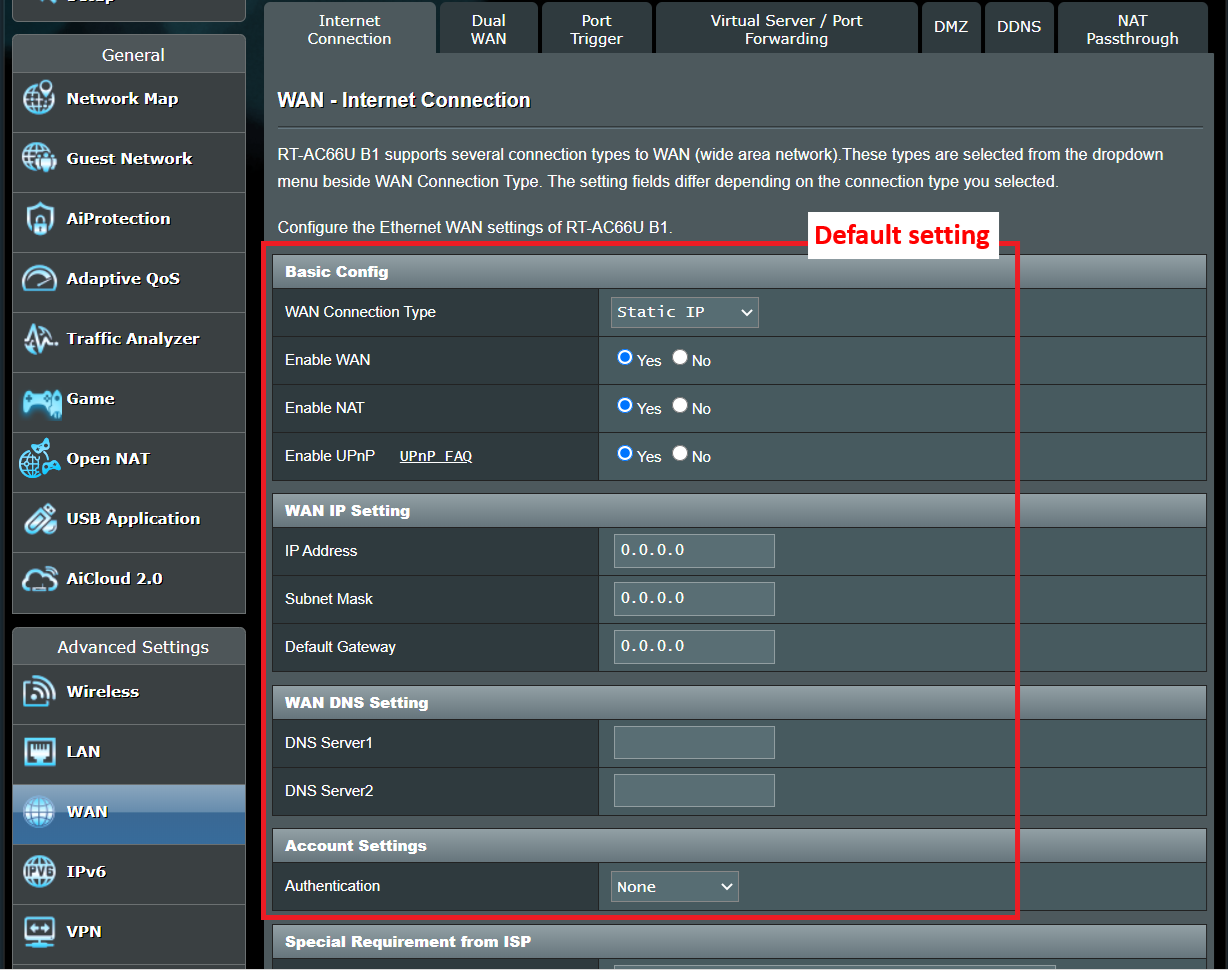
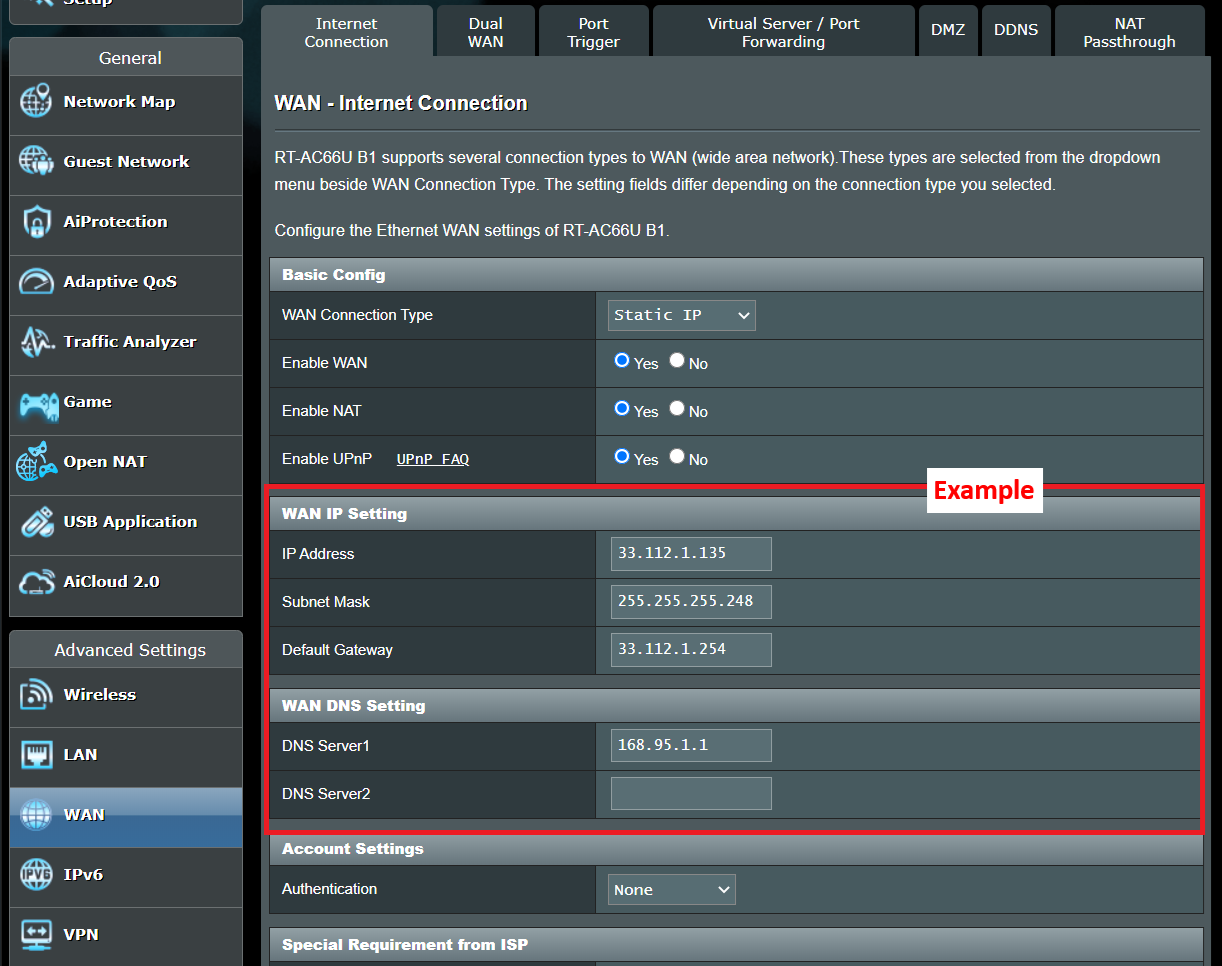
How to set up an Internet connection, please refer to the FAQ below
[Wireless Router] How to set up an Internet Connection?(WAN connection types)
[Wireless Router] How to use the QIS (Quick Internet Setup) to set up Router ? (Web GUI)
2. Please note that if the router is using a private WAN IP address (such as connected behind another router/switch/modem with built-in router/WiFi feature), could potentially place the router under a multi-layer NAT network. DDNS service and Port Forwarding will not function properly under such environment.
Private IPv4 network ranges:
Class A: 10.0.0.0 = 10.255.255.255
Class B : 172.16.0.0 = 172.31.255.255
Class C : 192.168.0.0 = 192.168.255.255
CGNAT network ranges:
The allocated address block is 100.64.0.0/10, i.e. IP addresses from 100.64.0.0 to 100.127.255.255.
3. Please make sure that your computer's network card is set to obtain IP address automatically
If the computer's network card is not set to automatically obtain the IP location, it may not be able to obtain the IP address assigned by the router, so you cannot connect to the Internet through the router, or you cannot enter the router settings page.
Please refer to [Troubleshooting] Why am I unable to access my ASUS router’s settings page?
4. If you already checked the related information of your Internet Service Provider (ISP) is correct yet fail to get internet connection, please refer to Step 6.
Step 5. Check if your wireless name(WiFi/SSID) and the password settings of your router is correct.
If the device (e.g. laptop or smart phone) connected to the wireless router's WiFi network cannot access the internet.
1. It is recommended that you change the wireless router's WiFi name and password.
About how to change your WiFi name and password, please refer to [Wireless Router] How to modify Wireless(WiFi) Name and Password in ASUS Router?
2. After changing your password, try to use the (e.g. PC, laptop) connect to your router wirelessly again and check if the device could search the new WiFi of your router.
(1) If the devices couldn’t search the WiFi name of your router, please check if other devices could.
If only specific device that couldn’t search the WiFi, suggest you could check if the internet function of the device works in other internet environment. Or you could ask the device manufacturer for relevant troubleshooting steps.
Example:
You have 1 phone, 1 pad, and 1 laptop. And all of them connect to the router but only the phone couldn’t find the WiFi of the router while the pad and the laptop could find the WiFi and connect to internet successfully.
We suggest you use the phone to connect to other router wirelessly or to connect to other WiFi internet environment. And then check if the phone could get internet connection properly.
We also suggest you to loop up the WiFi connection settings and troubleshooting steps provided by the device manufacturer.
If your devices are ASUS product, please refer to following FAQ:
If you are using an ASUS phone or laptop, you can also refer to the following FAQ for simple troubleshooting:
(2) If all the devices couldn’t find the WiFi of your router, please refer to Step 7 for troubleshooting steps.
3. If your devices could find the WiFi of your router, please type the password that you have changed and check if the device could get internet connection successfully. If still couldn’t , please refer to Step 7 for troubleshooting steps. About how to enter the setting page (WEB GUI) of your router, please refer to [Wireless Router] How do I enter my ASUS router's setting page using Web GUI
Step 6. Use the cable provided by your Internet Service Provider connect to your computer directly, check if the computer could connect to internet.
1. We suggest you to remove the wireless router and connect to the cable provided by your Internet Service Provider (ISP) to your computer. Check if the internet is on.
For example, connect your device (e.g. PC, laptop) to the modem or router provided by Internet Service Provider (ISP) using an Ethernet cable.
2. If connect to the cable provided by your Internet Service Provider (ISP) directly but the computer still fails to get internet connection. Suggest you to confirm with your Internet Service Provider (ISP) about it.
If the computer could get internet connection successfully, then please refer to Step 7.
Step 7. Please check the firmware version is the latest one.
1. Updating the firmware of your wireless router can improve and enhance its performance, as well as fix known issues. Therefore, it is recommended that you update your router to the latest firmware version.
You can set up your ASUS router via Web GUI or ASUS Router app.
- ASUS Router Web GUI : Log in to the ASUS router settings page, click on firmware Version at the top of the Network Map to confirm that your router's firmware has been updated to the latest version.
- ASUS Router App : Login to the App and tap [Settings] > [Firmware Upgrade] > [Check Firmware Version], confirm that your router's firmware has been updated to the latest version.
For instructions on updating the router's firmware, please refer to the following FAQ.

2. If the current version is the latest version, please reset your router to its default settings and then reconfigure the router according to the steps in the QIS (Quick Internet Setup) wizard.
Follow the steps below to restore your router to its factory settings, or refer to the FAQ [Wireless Router] How to reset the router to factory default setting?
Notice: After resetting the router, all the settings will be cleared and will need to be setup again.
(1) Please find the RESET button, following pictures take RT-AC68U as an example.
(Different models might have slight differences, please confirm the related information in the user manual if you have any concern.)
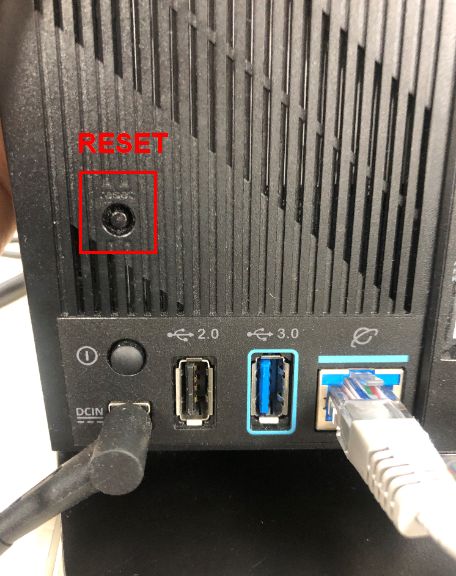
(2) Press the RESET button around 5~10 seconds, release the RESET button after the power LED light starts flashing.
In the meantime, all the LED indicators of the router should be off and it’s a normal phenomenon because the router is rebooting itself.
And wait until the Power LED indicator and WiFi LED indicators are on again, you could try to enter the GUI of the router again.
(3) Use the Quick Internet Setup (QIS) to setup your router again.
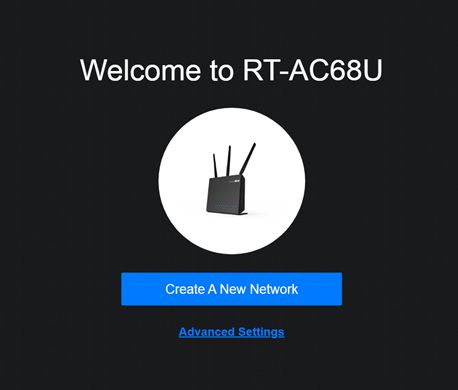
About how to use Quick Internet Setup (QIS) to setup your router, please refer to
Step 8. If all the steps above still couldn’t fix the problem that you encountered after trying, please contact ASUS Customer Service Center.
How to get the (Utility / Firmware)?
You can download the latest drivers, software, firmware and user manuals in the ASUS Download Center.
If you need more information about the ASUS Download Center, please refer this link.
---
来源: https://www.asus.com/support/FAQ/1030645
|
|
 /1
/1 

 苏公网安备 32050502000499号



 窥视卡
窥视卡 雷达卡
雷达卡


 发表于
发表于  提升卡
提升卡 置顶卡
置顶卡 沉默卡
沉默卡 喧嚣卡
喧嚣卡 变色卡
变色卡 千斤顶
千斤顶 显身卡
显身卡